

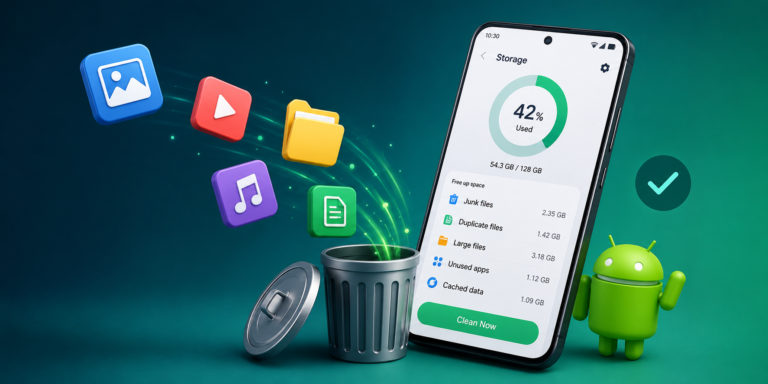
Running out of storage on an Android phone is frustrating. You may see warnings that there is not enough space to install an app, take new photos, download videos, or even update your phone.
The good thing is that you usually do not need to buy a new phone just because the storage is full. A little cleaning can often free up several gigabytes of space.
If you’re wondering how to free up storage on Android phone, start with the easiest things first. Delete files you no longer need, remove unused apps, clean up large videos, and check which apps are taking up the most space.
Here are some simple ways to get your storage back.
1. Check What Is Using Your Storage
If you are noticing unusual battery drain along with storage problems, our guide on how to make your phone battery last longer may also be useful.
Before deleting anything, find out what is actually filling your phone.
On most Android phones, go to:
Settings → Storage
The exact wording can be slightly different depending on your phone brand and Android version.
You may see categories such as:
- Apps
- Photos and videos
- Music
- Documents
- Downloads
- System
- Other files
This gives you a much better idea of where to start.
If videos are taking up most of the space, deleting old apps will not make much difference. Likewise, if apps are using most of your storage, you should concentrate on removing apps you no longer use.
2. Delete Apps You No Longer Use
Take a look through your installed apps.
You may find games, shopping apps, editing tools, or other applications that you installed months ago and have barely opened since.
If you don’t use an app anymore, uninstall it.
You can usually uninstall an app by pressing and holding its icon and selecting Uninstall. You can also manage installed apps through your phone’s Settings.
Removing several large unused apps can free up a surprising amount of storage.
3. Clean Up Your Downloads Folder
The Downloads folder is easy to forget.
Over time, it can collect PDFs, images, videos, documents, APK files, and other files that you only needed temporarily.
Open your file manager and check the Downloads folder.
Delete anything you no longer need. Be careful with important documents before selecting multiple files for deletion.
4. Delete Large Videos
Videos can consume storage much faster than photos.
A few long HD or 4K videos can take up several gigabytes on their own.
Open your gallery and look for:
- Old recordings
- Duplicate videos
- Screen recordings
- Downloaded clips
- Videos you have already backed up
If you have important videos stored safely elsewhere, you can remove the copies from your phone.
Screen recordings are particularly worth checking because people often forget about them after using them once.
5. Remove Duplicate Photos
Your phone may contain multiple copies of the same photo.
This can happen when you download images from messaging apps, edit pictures, or save the same image more than once.
Some Android phones and photo-management apps can help identify duplicate or similar images.
Before deleting anything, check the pictures carefully. You do not want to remove an important photo simply because it looks similar to another one.
6. Empty Your Trash or Recycle Bin
Deleting a photo or file does not always remove it immediately.
Many gallery and file-management apps move deleted items to a Trash or Recently Deleted folder first.
These files may continue using storage until they are permanently removed.
If you are certain that you no longer need them, open the relevant Trash or Recently Deleted folder and clear it.
This can sometimes recover a significant amount of space.
7. Clear App Cache
Apps store temporary files called cache data to help them load information more quickly.
Over time, some apps can build up a considerable amount of cached data.
You can usually check this through:
Settings → Apps → Select an app → Storage
Depending on your Android version, you may see an option such as Clear cache.
Be careful not to confuse Clear cache with Clear storage or Clear data. Clearing an app’s data can remove saved information and may sign you out.
For that reason, use the cache option when you simply want to remove temporary files.
8. Check WhatsApp and Other Messaging Apps
Messaging apps can quietly become major storage users.
Photos, videos, voice messages, documents, stickers, and forwarded files can accumulate over time.
If you use WhatsApp or another messaging service frequently, check its storage-management section.
Delete large videos and files that you no longer need, especially from old group chats.
You do not have to delete entire conversations. In many cases, you can remove only the large media files.
9. Move Photos and Videos to Cloud Storage
Before removing backed-up photos from your device, it is a good idea to review Google’s official guidance on free up space on your Android device.
If your phone is packed with photos you want to keep, consider backing them up to a reliable cloud-storage service.
Once you have confirmed that your photos and videos are safely backed up, you can remove selected local copies from your device.
This is particularly useful for people who take lots of pictures but have limited phone storage.
Always verify that your backup has completed before deleting the original files.
10. Delete Offline Downloads
Streaming apps often allow users to download movies, music, podcasts, and other content for offline use.
These downloads can take up a lot of space.
Check apps such as:
- YouTube
- Netflix
- Spotify
- Podcast apps
- Music apps
- Navigation apps
Remove downloads you have already watched, listened to, or no longer need.
You can always download the content again later when necessary.
11. Look for Large Files
Open your Android file manager and sort files by size if that option is available.
Large files are often the quickest way to recover storage.
You may discover an old video, compressed archive, installation file, or document that you completely forgot about.
Instead of deleting hundreds of small files, removing a handful of very large files can make a much bigger difference.
12. Restart Your Phone After Cleaning It
Once you have finished cleaning your storage, restart your phone.
This is not a magic way to create several gigabytes of free space, but restarting can help the phone refresh its temporary processes and complete certain maintenance tasks.
After restarting, check Settings → Storage again to see how much space is available.
What Should You Delete First?
If you need free space quickly, start with the following:
- Large videos
- Unused apps
- Downloads
- Offline movies and music
- WhatsApp and messaging-app media
- Duplicate photos
- Temporary files and app cache
Do not start deleting random system files just because they have unfamiliar names. Some files are required for Android or your installed applications to work properly.
How Much Free Storage Should an Android Phone Have?
There is no single amount that every Android phone needs.
However, keeping some free space is a good idea because apps need room for temporary files, updates, and normal operation.
If your phone is constantly showing a nearly-full storage warning, it is worth cleaning it rather than waiting until there is almost no space left.
For a better experience, try to avoid keeping your storage completely full.
What If My Android Storage Is Still Full?
If your phone is also becoming slow while running out of storage, you can read our guide on how to speed up a slow Android phone for more practical solutions.
If you have deleted photos, videos, apps, and downloads but your phone still reports very little free space, check the storage breakdown again.
The Apps, System, or Other categories may be responsible.
Also check whether large files are being stored by messaging apps or whether cloud-backed photos still have local copies.
If the storage problem continues and you cannot identify the cause, backing up your important information and performing a factory reset can be considered. However, this should be a last resort because it removes personal data and installed apps from the phone.
Final Thoughts
Learning how to free up storage on Android phone does not have to be complicated. In many cases, the biggest improvements come from removing old videos, unused apps, downloaded files, and unnecessary media from messaging apps.
Before deleting anything important, make sure you have a backup. Then work through your storage category by category instead of deleting files at random.
A few minutes of cleaning can give your Android phone enough room for new photos, apps, updates, and everyday use again.
