

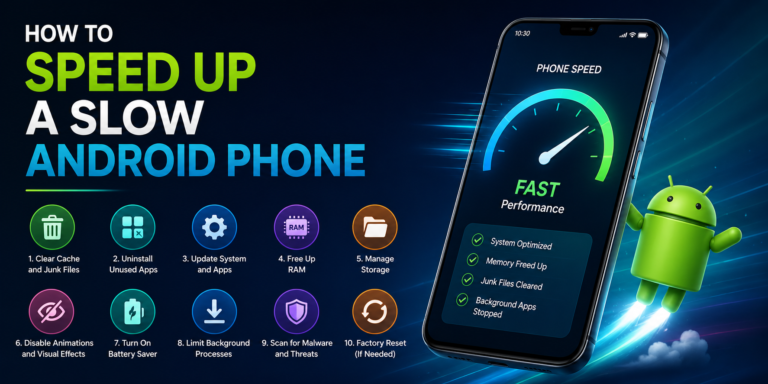
There is nothing more frustrating than a phone that used to feel fast but now takes forever to open an app, load a webpage, or respond to a tap.
Android phones can become slower over time for several reasons. Your storage may be almost full, too many apps may be running in the background, an app may be causing problems, or the phone may simply be getting old.
The good news is that you do not necessarily need a new phone.
If you are wondering how to speed up a slow Android phone, try the following fixes one at a time. In many cases, a few simple changes can make a noticeable difference.
1. Restart Your Phone
It sounds too simple, but restarting your phone can sometimes fix temporary performance problems.
When a phone stays on for days or weeks, background processes can build up and an app may stop working properly.
Restarting closes running processes and gives the system a fresh start.
If your phone has become unusually slow recently, restart it before trying more complicated solutions.
2. Check Your Available Storage
If your phone is running out of space, our guide on how to free up storage on Android phone explains several simple ways to remove unnecessary files and apps.
Low storage is one of the first things you should investigate.
Go to Settings → Storage and see how much space is available.
If your phone is nearly full, remove things you no longer need, such as:
- Old videos
- Duplicate photos
- Downloaded files
- Unused applications
- Offline movies and music
- Large files from messaging apps
Try to keep some free space available instead of filling the phone completely.
If you need help cleaning up storage, you can also read our guide on how to free up storage on Android phone.
3. Uninstall Apps You Don’t Use
Most people have apps installed that they rarely or never open.
Games, shopping apps, photo editors, social media applications, and other tools can take up storage and may run background processes.
Go through your app list and remove anything you no longer need.
You can always reinstall an app later if you discover that you actually need it.
4. Update Android
Google recommends keeping Android devices updated to receive the latest security and software improvements. You can check Google’s official Android Help guidance for more information.
Check whether your phone has an available system update.
Software updates can include bug fixes, security improvements, and performance changes.
Open your phone’s settings and look for the software or system-update section.
The exact menu can differ between Samsung, Google Pixel, Xiaomi, OnePlus, Motorola, and other Android devices.
5. Update Your Apps
Your operating system isn’t the only software that needs updating.
An outdated application may contain bugs that affect performance or battery life.
Open the Google Play Store and check for available app updates.
If your phone became slow after installing a particular application, pay special attention to that app.
6. Clear App Cache
Some applications store temporary data that can grow over time.
If one particular app is behaving badly, clearing its cache may help.
Usually, you can find this option through:
Settings → Apps → Select the app → Storage → Clear cache
The exact steps vary between Android devices.
Be careful when selecting Clear storage or Clear data, because those options can remove saved information and log you out of the app.
7. Reduce the Number of Widgets
Widgets can be useful, but having many of them constantly updating can add extra background activity.
Take a look at your home screens.
If you have widgets you never use, remove them.
You do not need to eliminate every widget. Just keep the ones that are genuinely useful.
8. Turn Off Unnecessary Background Activity
Some applications continue working even when you are not actively using them.
Social media, shopping, news, and other apps may regularly refresh their content.
Check your phone’s battery or app settings to see which applications are using significant background resources.
If an app does not need to run constantly, consider restricting its background activity.
Keep in mind that doing this may delay notifications from certain applications.
9. Reduce Animations
Android uses animations to make transitions look smoother.
On older or less powerful phones, reducing some visual effects can make the device feel more responsive.
Depending on your Android version and manufacturer, animation settings may be available through developer options or accessibility settings.
If you are not comfortable changing developer settings, you can simply leave this step alone. The other fixes may be enough.
10. Remove Unnecessary Files From Downloads
Your Downloads folder can become surprisingly large.
Old PDFs, images, videos, documents, installation files, and other downloads may remain on your phone long after you have finished using them.
Open your file manager and review the folder.
Delete files you no longer need, but make sure important documents are backed up first.
11. Check for Problematic Apps
Sometimes one badly behaved app can make an entire phone feel slow.
Think about when the problem started.
If the phone became noticeably slower after installing a particular app, try uninstalling that application temporarily.
Then use your phone normally and see whether performance improves.
This can help identify the source of the problem.
12. Consider a Factory Reset as a Last Resort
If your phone remains extremely slow after trying everything else, a factory reset may help.
However, this should be your last option.
A factory reset removes your personal information, applications, and settings from the device.
Before doing it, back up your important:
- Photos
- Videos
- Contacts
- Documents
- Messages
- Other personal files
After the reset, reinstall only the applications you actually need.
Why Is My Android Phone Still Slow?
If your phone remains slow after cleaning it, there may be another reason.
Older phones have less powerful processors and may struggle with newer applications.
A worn-out battery can also contribute to performance problems on some devices.
Hardware damage, overheating, outdated software, or a problematic application can also be responsible.
If the phone is several years old and performance has gradually declined, there may be a limit to how much software cleanup can improve it.
Should You Use a Phone Cleaner App?
Be careful with third-party “phone cleaner” applications.
Some are useful, but many promise more than they can actually deliver. You generally do not need an aggressive cleaner to manage basic Android storage and app data.
Start with the tools already built into your phone.
Check storage, remove unused apps, delete unnecessary files, and manage problematic applications manually.
How to Keep an Android Phone Fast
If battery drain is also becoming a problem, see our guide on how to make your phone battery last longer for practical ways to improve battery life.
Once your phone is running better, a few habits can help keep it that way.
Try to:
- Keep enough free storage available.
- Remove apps you no longer use.
- Install important system updates.
- Keep apps updated.
- Restart the phone occasionally.
- Avoid installing suspicious applications.
- Delete unnecessary downloads.
- Keep large amounts of unused media backed up elsewhere.
- Monitor apps that consume excessive battery or data.
These simple habits can prevent many common performance problems.
Final Thoughts
Learning how to speed up a slow Android phone does not always require expensive repairs or a new device.
Start with the basics: restart your phone, check storage, remove unused apps, update your software, clear problematic app caches, and look for applications that may be consuming too many resources.
If the phone is still slow after all of these steps, its age or hardware may be the limiting factor. In that situation, a professional inspection or eventually upgrading the device may make more sense than continuing to change settings.
For most everyday slow-phone problems, however, a little cleanup can go a long way.
