
Close Menu
    What's New

    How to Understand Football League Tables and Standings: A Beginner’s Guide

    September 21, 2026

    How to Clear Cache and Cookies in Chrome: Step-by-Step Guide

    September 21, 2026

    How to Take a Screenshot on Windows 11: A Simple Guide

    September 21, 2026

    Harry Kane Breaks Bundesliga Record in Bayern Munich’s 7-0 Win Over Union Berlin

    September 19, 2026

    The Diana Book Row Reopens Old Wounds for the Royal Family

    September 19, 2026
    Facebook X (Twitter) Instagram Pinterest
    • Home
    • About Us
    • Privacy Policy
    • Terms and Conditions
    • Contact Us
    Facebook X (Twitter) Instagram Pinterest
    • news
    • Technology
    • Home
    • Health
    • Education
    • Business
    • Shopping
    • SEO
    • Finance
    • Games
    Home»Technology»How to Clear Cache and Cookies in Chrome: Step-by-Step Guide
    Technology

    How to Clear Cache and Cookies in Chrome: Step-by-Step Guide

    Michael CarterBy Michael CarterSeptember 21, 2026No Comments3 Mins Read
    How to Clear Cache and Cookies in Chrome: Step-by-Step Guide
    Share
    Facebook Twitter LinkedIn Pinterest Email

    If a website loads slowly, shows old content, or keeps throwing errors, clearing your browser’s cache and cookies often fixes it. It takes less than a minute in Google Chrome. Here is how to do it on both computer and phone.

    What Are Cache and Cookies?

    • Cache is a stored copy of website files, such as images and scripts, that helps pages load faster on your next visit. Sometimes the saved copy becomes outdated and causes display problems.
    • Cookies are small files that websites save on your device to remember your login, preferences, and shopping cart items.

    Clearing them removes this stored data, so websites load fresh. The downside is that you will be signed out of most sites.

    Clear Cache and Cookies in Chrome on Computer

    Clear Cache and Cookies in Chrome on Computer

    1. Open Google Chrome.
    2. Press Ctrl + Shift + Delete (or Cmd + Shift + Delete on Mac). You can also click the three dots in the top-right corner, go to Delete browsing data.
    3. Choose a time range, such as Last hour, Last 24 hours, Last 4 weeks, or All time.
    4. Tick Cookies and other site data and Cached images and files.
    5. Click Delete data.

    For more detail on these options, Google explains the full process on its Clear cache & cookies help page.

    Clear Cache and Cookies in Chrome on Android

    Clear Cache and Cookies in Chrome on Android

    1. Open the Chrome app and tap the three dots in the top-right corner.
    2. Tap Delete browsing data.
    3. Select a time range.
    4. Check Cookies and site data and Cached images and files.
    5. Tap Delete data.

    Clear Cache and Cookies in Chrome on iPhone

    1. Open Chrome and tap the three dots at the bottom-right.
    2. Tap Delete Browsing Data (or go to Settings > Privacy and Security).
    3. Select the time range and check Cookies, Site Data and Cached Images and Files.
    4. Tap Delete Browsing Data to confirm.

    Clear Cookies for One Website Only

    aClear Cookies for One Website Only
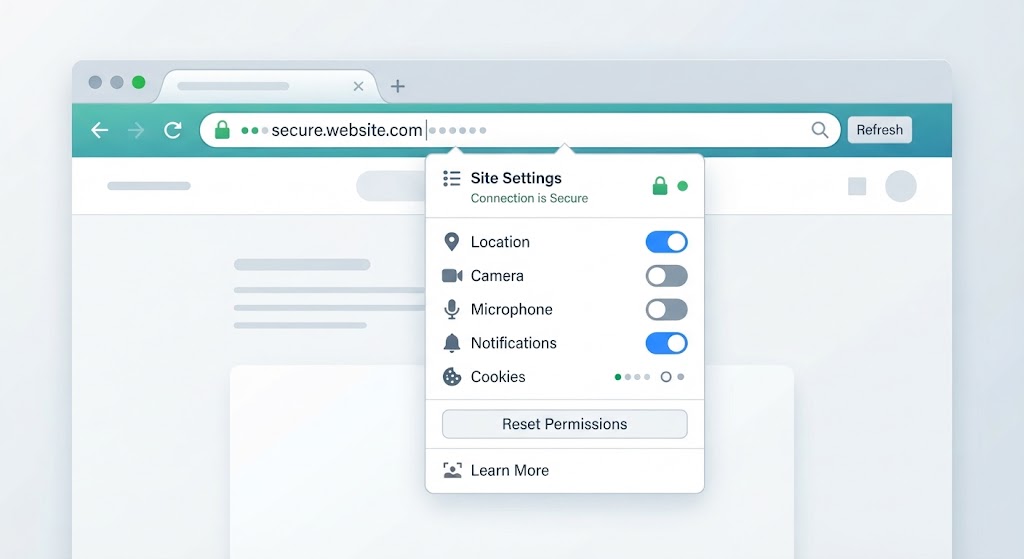
    If only one site is causing trouble, you don’t need to wipe everything:

    1. Click the icon on the left side of the address bar (a lock or settings icon).
    2. Select Cookies and site data and then Manage on-device site data.
    3. Delete the data for that site only.

    Google also has a guide on how to clear, enable, and manage cookies in Chrome if you want finer control.

    When Should You Clear Cache and Cookies?

    • A website looks broken or shows outdated content
    • Pages load slowly or fail to load
    • You get login or “too many redirects” errors
    • You want to protect your privacy on a shared computer
    • You want to free up a bit of storage space

    Things to Keep in Mind

    • You will be logged out of websites, so keep your passwords handy.
    • Websites may load a little slower the first time after clearing, since the cache has to rebuild.
    • Avoid ticking Passwords or Autofill form data unless you want those removed too.

    Final Thoughts

    Clearing your cache and cookies is one of the easiest ways to fix common browser problems. Try the Ctrl + Shift + Delete shortcut, choose your time range, and you’re done. Doing it every few weeks keeps Chrome running smoothly.

    Share. Facebook Twitter Pinterest LinkedIn Email Copy Link
    Michael Carter
    • Website

    Michael Carter is a U.S.-based writer and content researcher covering business, technology, lifestyle, home improvement, and everyday trends. He focuses on creating clear, practical, and easy-to-understand articles that help readers discover useful information and make informed decisions. With an interest in emerging trends and practical solutions, Michael brings a straightforward approach to every topic he covers. His work on Buzztum combines research with real-world insights to provide readers with engaging and useful content.

    Related Posts

    How to Take a Screenshot on Windows 11: A Simple Guide

    September 21, 2026

    The Best VPNs Right Now — And Which One Actually Fits You

    September 18, 2026

    One UI 9 Is Officially Rolling Out to the Galaxy S26 Series

    September 17, 2026
    Latest Posts

    How to Understand Football League Tables and Standings: A Beginner’s Guide

    September 21, 2026

    How to Clear Cache and Cookies in Chrome: Step-by-Step Guide

    September 21, 2026

    How to Take a Screenshot on Windows 11: A Simple Guide

    September 21, 2026

    Harry Kane Breaks Bundesliga Record in Bayern Munich’s 7-0 Win Over Union Berlin

    September 19, 2026

    The Diana Book Row Reopens Old Wounds for the Royal Family

    September 19, 2026
    Popular Posts
    Latest

    Animals Stomach Book Lyrics

    By Buzztum EditorSeptember 26, 2023

    Welcome to the universe of Animals Stomach Book Lyrics, where tune meets instructive tomfoolery! From…

    Soaptoday – Your Comprehensive Guide

    July 30, 2023

    What is Interact sh? A Comprehensive Guide

    July 21, 2025

    Assumira: Unveiling the Secrets of Success

    October 16, 2023

    Link Building Solutions For Your Website

    September 28, 2022
    About Us

    Buzztum is an engaging platform for the readers who seek unique and perfectly readable portals to be updated with the latest transitions all around the world whether it is Entertainment, Fashion, Business, Technology, News, or any new events around the world.

    Popular Posts

    Raiders’ Henry Ruggs Making a Strong Case for Rookie of the Year

    September 2, 2023

    The Lima News Orbits: Beyond the Headlines – Exploring Obituaries

    January 25, 2025
    Latest Posts

    How to Understand Football League Tables and Standings: A Beginner’s Guide

    September 21, 2026

    How to Clear Cache and Cookies in Chrome: Step-by-Step Guide

    September 21, 2026
    © 2026 buzztum All Rights Reserved
    • Home
    • About Us
    • Privacy Policy
    • Terms and Conditions
    • Contact Us

    Type above and press Enter to search. Press Esc to cancel.