

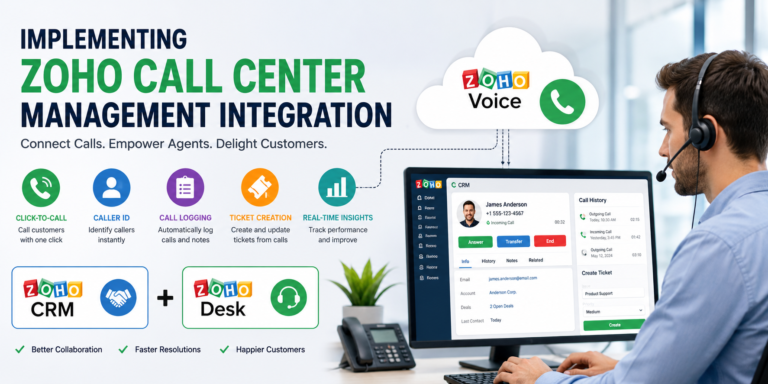
Managing customer calls from separate phone systems, CRM records, and support platforms can quickly become complicated. Agents may have to switch between applications, manually search for customer information, and record calls after every conversation.
Implementing Zoho call center management integration can bring these activities into a more connected workflow. With Zoho Voice integrated with applications such as Zoho CRM and Zoho Desk, teams can make and receive calls, identify customers, log conversations, and manage support activities without constantly switching between systems.
This guide explains how Zoho call center integration works, what you need before implementation, how to set it up, and how to get the most from the system.
What Is Zoho Call Center Management Integration?
Zoho call center management integration connects your business phone system with Zoho applications used for sales and customer support.
For example, integrating Zoho Voice with Zoho CRM allows sales representatives to access customer information while making or receiving calls. Similarly, integrating Zoho Voice with Zoho Desk allows support agents to connect phone conversations with customer records and tickets.
Depending on the configuration, the integration can provide features such as:
- Click-to-call
- Incoming call pop-ups
- Caller identification
- Automatic call logging
- Call notes and dispositions
- Contact lookup
- Automatic ticket creation
- Browser-based calling
- Agent and phone-number management
These features can reduce manual data entry and give agents more customer context during conversations.
Why Integrate a Call Center With Zoho?
A standalone phone system may handle calls effectively, but it does not always provide the customer information an agent needs.
When the phone system and CRM or help desk are connected, agents can work with customer information from the same environment.
1. Reduce Application Switching
Without integration, an agent might receive a call, search for the customer’s phone number in the CRM, open the customer’s record, and then manually enter call details.
With Zoho Voice integrations, caller information can appear through screen pop-ups, while click-to-call functionality allows users to initiate calls directly from supported Zoho applications.
2. Automatically Record Call Activity
Manual call logging takes time and can result in missing or inaccurate records.
Zoho Voice’s native integrations can automatically log calls made using associated business phone numbers. Teams can then use these records as part of their customer history.
3. Give Agents More Customer Context
A phone call is often only one part of a larger customer interaction.
A support agent may need to know:
- Previous tickets
- Customer details
- Account information
- Previous conversations
- Sales activity
- Existing problems
Integrating Zoho CRM and Zoho Desk can provide a more unified customer view by syncing relevant customer and product information and making ticket information available within CRM.
What You Need Before Implementation
Before starting your Zoho call center integration, establish the basic requirements.
Choose the Zoho Applications
First, determine which applications need to communicate with your phone system.
A common setup includes:
Zoho Voice + Zoho CRM + Zoho Desk
Zoho Voice can integrate natively with CRM and Desk, while Zoho CRM and Zoho Desk can also be connected to share customer and support information.
Define Your Call Workflow
Decide what should happen when:
- A customer calls
- An existing customer calls
- A new number calls
- A call is missed
- An agent makes an outbound call
- A customer needs technical support
- A call requires follow-up
Defining these workflows before implementation makes configuration easier.
Prepare Your Agents
Create a list of users who need access to the phone system.
Depending on the setup, Zoho Voice allows agents to be imported from Zoho CRM or Zoho Desk and assigned appropriate roles and departments.
How to Implement Zoho Call Center Management Integration
The exact steps depend on the Zoho applications and plan you use, but the implementation process generally follows several stages.
Step 1: Set Up Your Zoho Voice Account
Start by configuring your Zoho Voice account and business phone numbers.
Your phone configuration may include:
- Incoming numbers
- Outgoing numbers
- Agents
- Queues
- IVRs
- Call-routing rules
For Zoho Desk integrations, Zoho’s documentation explains that incoming calls can be routed to agents, queues, or IVRs, while outgoing numbers can be assigned to agents.
Step 2: Connect Zoho Voice With Zoho CRM or Desk
For a Zoho Desk telephony integration, administrators can enable the telephony functionality within Zoho Desk and install Zoho Voice from the Telephony Marketplace.
The general process is:
- Sign in to Zoho Desk.
- Open Setup.
- Go to the phone or telephony settings.
- Select Zoho Voice.
- Install or enable the integration.
- Select the users who should have access.
- Configure the corresponding settings in Zoho Voice.
Zoho’s current documentation states that the Zoho Voice integration with Desk is available for Professional and Enterprise editions of Zoho Desk.
For Zoho CRM, administrators can connect the CRM portal through the Zoho Voice integration settings and import the required users.
Step 3: Install ZDialer Where Required
ZDialer can provide calling functionality directly inside supported Zoho applications.
It supports browsers including Chrome, Firefox, and Microsoft Edge. With ZDialer, users can access click-to-call functionality, dial numbers, and receive incoming call notifications through supported Zoho applications.
This is particularly useful for teams that spend most of their working day inside a browser.
Step 4: Import and Configure Agents
Once the applications are connected, import the required agents.
Configure:
- Agent names
- Departments
- Roles
- Phone numbers
- Outbound caller IDs
- Call permissions
Zoho Voice supports roles such as admin, supervisor, supervisor plus, and technician, depending on the setup.
Only give users the permissions they actually need.
Step 5: Configure Call Routing
Call routing determines what happens when someone calls your business.
For example:
Customer → Main Number → IVR → Support Queue → Available Agent
You can create different routes for departments such as:
- Sales
- Customer support
- Billing
- Technical support
- General inquiries
Queues can help distribute calls among available agents, while IVRs can guide callers toward the appropriate department.
Step 6: Enable Automatic Call Logging
Automatic call logging is one of the most useful parts of the integration.
Instead of asking agents to manually create a record after every conversation, the system can automatically log calls made through associated business numbers.
Your organization should establish a consistent process for adding:
- Call notes
- Call outcomes
- Dispositions
- Follow-up tasks
- Customer concerns
This creates a more useful customer history.
Automating Support Tickets From Calls
A major advantage of integrating Zoho Voice with Zoho Desk is the ability to automatically create tickets for selected call events.
For example, a company could configure its workflow so that certain missed calls automatically generate support tickets.
Zoho Desk’s integration settings can also be configured to create tickets for selected inbound or outbound call events and, depending on the configuration, save call recordings in activities or tickets.
This can prevent missed calls from disappearing from the support team’s workflow.
Example Workflow
Imagine a customer calls your support number while all agents are busy.
The workflow could be:
Incoming call → No agent available → Missed call → Automatic ticket → Agent follow-up
This turns an otherwise lost interaction into an actionable support task.
Integrating Zoho CRM With Zoho Desk
For businesses using both sales and support teams, connecting CRM and Desk can make the call center workflow even more useful.
Zoho’s CRM-Desk integration supports synchronization of information such as contacts, accounts, and products, while allowing relevant Desk ticket information to be accessed from CRM.
Consider a customer who calls about a product they purchased.
The support agent can potentially access:
Customer → Account → Product → Support Ticket → Call History
This gives the agent more context before responding.
Best Practices for Zoho Call Center Implementation
Simply connecting the applications is not enough. Your team should also establish clear operational rules.
Create Standard Call Dispositions
Use consistent outcomes such as:
- Resolved
- Follow-up required
- New customer
- Existing customer
- Technical issue
- Billing issue
- Escalated
- Wrong number
Consistent dispositions make call reporting easier.
Keep Customer Records Clean
Duplicate customer records can make caller identification and reporting less reliable.
Before launching the integration, review duplicate contacts and standardize important fields such as names, email addresses, and phone numbers.
Train Agents Before Going Live
Agents should know how to:
- Answer calls
- Transfer calls
- Place callers on hold
- Add notes
- Select dispositions
- Create tickets
- Schedule follow-ups
- Handle missed calls
A short training session can prevent many avoidable workflow problems.
Test Before Full Deployment
Do not immediately roll the integration out to every employee.
Start with a small group of agents and test:
- Incoming calls
- Outgoing calls
- Caller identification
- Click-to-call
- Call logging
- Ticket creation
- Call routing
- Recording settings
- User permissions
Fix problems before expanding the deployment.
Common Challenges During Implementation
Even a well-designed integration can have configuration issues.
Duplicate Customer Records
If the same customer exists multiple times, the system may not always display the information an agent expects.
Clean the database before implementation and establish rules for creating new contacts.
Incorrect Call Routing
Poorly configured IVRs or queues can send callers to the wrong department.
Test every menu option using real call scenarios.
Missing Call Logs
Call logging depends on the correct integration and phone-number configuration. Check that the numbers used by agents are associated with the appropriate setup. Zoho notes that phone numbers need to be assigned correctly for calls to work within Zoho Desk in the relevant telephony configuration.
User Permission Problems
An agent may be unable to access certain features if their role or permissions are incorrectly configured.
Review permissions before launch rather than troubleshooting them one user at a time.
How to Measure Call Center Performance
After implementation, track performance to determine whether the integration is actually improving operations.
Useful metrics include:
- Number of inbound calls
- Number of outbound calls
- Missed calls
- Average response time
- Average call duration
- First-call resolution
- Number of escalations
- Tickets created from calls
- Follow-up completion rate
- Customer satisfaction
The goal is not simply to increase the number of calls handled. A good call center should resolve customer issues efficiently while maintaining a positive customer experience.
Final Thoughts
Implementing Zoho call center management integration can create a more connected customer-service workflow by bringing phone communication closer to CRM and help desk data.
Zoho Voice integrations can provide features such as caller identification, click-to-call, incoming call pop-ups, automatic call logging, and automated ticket creation.
The most effective implementation starts with workflow planning. Define how calls should be routed, determine which agents need access, configure automatic logging and ticket creation, clean your customer database, and test the system before deploying it across the organization.
When properly configured, the result is more than a connected phone system. It becomes a centralized customer communication workflow where agents can spend less time searching for information and more time helping customers.
