

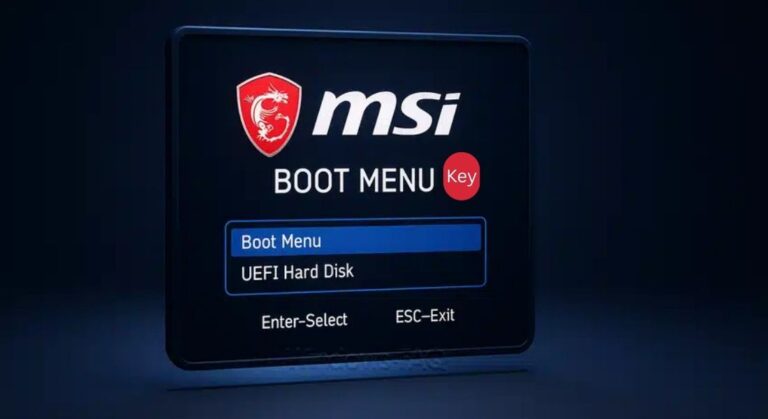
Modern MSI computers, desktops, gaming towers, and laptops use simple shortcut keys that give you powerful control before Windows even loads. Whether you want to install Windows from USB, change boot device order, enable Legacy/UEFI options, or enter BIOS setup, knowing the right keys saves time and frustration.
This guide explains MSI boot menu keys, BIOS keys, USB boot steps, and common problems, using real-world instructions that work on most 2020–2025 MSI models.
1. What Is the Boot Menu Key for MSI Computers?
Most MSI motherboards and laptops use F11 as the Boot Menu key. This is a one-time boot device selector that pops up a menu where you can choose:
- USB flash drive
- External SSD/HDD
- DVD drive (older models)
- Network boot (PXE)
- Internal NVMe or SATA drive
Unlike BIOS, this menu does not save permanent settings. It simply lets you choose a temporary boot device once.
When to use Boot Menu instead of BIOS
- Installing Windows from USB
- Running Linux live USB
- Booting into recovery media
- Cloning drives
Because it is temporary, your system boots normally again after that restart.
2. How to Use F11 to Access the MSI One-Time Boot Menu
Timing is important. If Windows loads fully, you missed the chance.
Step-by-step
- Turn off the PC completely (no sleep or restart shortcuts).
- Press the Power button.
- As soon as the MSI dragon logo appears, start pressing F11 rapidly.
- A blue or black boot menu will appear.
- Select your boot device using arrow keys and press Enter.
Tip:
On some newer gaming laptops, the boot prompt briefly says “Press F11 for Boot Menu” in the corner.
If F11 does not work:
- Try a USB keyboard (wireless keyboards sometimes fail at boot time).
- Plug keyboard directly into a USB-A port, not USB-C hub.
3. Which Key Opens the BIOS on MSI Desktops and Laptops?
MSI uses different keys for BIOS (UEFI setup) depending on device type:
- MSI desktops / motherboards: Delete key
- MSI gaming laptops and business laptops: F2 or sometimes Delete
If one does not work, try the other.
BIOS is where you can:
- Enable/disable Secure Boot
- Change Boot Priority permanently
- Switch AHCI/RAID modes
- Adjust CPU or RAM settings
- Enable Virtualisation
- Update firmware (M-Flash)
BIOS is for configuration—not temporary booting.
4. MSI BIOS Basics: Delete vs. F2 – What’s the Difference?
Both keys achieve the same result:
They open the UEFI firmware interface before Windows loads.
But historically:
- Delete was default for desktop motherboards.
- F2 was added on laptops to match other brands like Acer, Asus, Dell, Lenovo.
So:
| Device | BIOS Key |
|---|---|
| MSI Desktop Motherboard | Delete |
| MSI Gaming Laptop | F2 |
| MSI Stealth/Creator/Prestige | F2 |
| MSI All-in-One PC | Delete or F2 |
If you see a message saying “Press DEL to run setup”, that confirms it.
5. How to Enter the MSI BIOS During Startup (Step-By-Step)
If you need permanent changes rather than temporary booting, follow these steps:
- Shut down the computer completely.
- Press the Power button.
- Immediately start pressing Delete (or F2 on laptops) repeatedly.
- The UEFI interface will load.
Inside MSI BIOS, the home screen normally shows:
- CPU info
- RAM size
- Motherboard model
- Temperature
- Fan speeds
- Boot priority list
If Windows boots too fast, disable Fast Boot in BIOS or use this restart trick:
Windows shortcut method
- Hold Shift and click Restart
- Go to Troubleshoot → Advanced Options → UEFI Firmware Settings
- Restart into BIOS
That works when keyboard timing is tricky.
6. How to Enable the F12 Boot Menu Option on MSI Systems
Some MSI BIOS versions have a setting called:
Boot Menu Hotkey / Boot Option Hotkey
Sometimes you may see:
- Enable F11 Boot Menu
- Enable Boot Menu Prompt
- Boot Menu Key Lock
A few MSI motherboards also allow F12 Boot Menu (similar to Dell).
If F12 doesn’t respond, enable it here:
- Enter BIOS
- Go to Settings
- Select Advanced
- Find Boot / Boot Configuration
- Turn Boot Menu to Enabled
- Save & reboot
On laptops with gaming firmware, this is usually already enabled, and F11 stays the main MSI hotkey.
7. Why Your F11 Boot Menu Isn’t Working (Common Fixes)
F11 can fail for several reasons. These are the common ones:
A. Fast Boot Enabled
Fast Boot skips keyboard initialization.
Solution: Disable Fast Boot in BIOS.
B. USB keyboard not detected early
Try:
- Wired USB keyboard
- Different USB port
C. Win11 Fast Startup
This uses hybrid shutdown.
Fix:
- Control Panel → Power Options → Disable Fast Startup
D. Secure Boot blocked USB OS
Many Linux live USBs won’t show until Secure Boot is off.
E. You’re pressing too late
Start pressing before the MSI logo.
8. How to Change the Boot Order Permanently in MSI BIOS
Permanent boot order decides where the system looks every time it turns on.
Steps
- Enter BIOS (Delete / F2)
- Go to the Boot tab
- Use mouse or keyboard to reorder devices
- Put your preferred boot device first
- Save (usually F10)
Example boot priority:
- Windows Boot Manager (SSD/NVMe)
- USB Hard Drive / Flash Drive
- Network PXE
You should only change this if you want a consistent new boot device, e.g.:
- Dedicated Linux installation
- Windows installed on a second drive
- Cloning software boots daily
Otherwise, use F11 one-time boot menu instead.
9. How to Boot From a USB Drive on an MSI Laptop or PC
Booting from USB helps with:
- Windows clean install
- Windows repair tools
- Linux installations
- BIOS firmware flashing
- Disk cloning
Checklist to prepare USB
- Use an 8–32GB USB stick
- Format FAT32 or NTFS depending on installer
- For Windows 10/11, use Microsoft’s Media Creation Tool
- For Linux, use Rufus or Balena Etcher
Then:
- Insert the bootable USB
- Turn off the computer
- Turn it on and press F11
- Select the USB device
- Press Enter
If USB doesn’t show:
- Try a different port (prefer USB 2.0 for older BIOS)
- Recreate bootable media
10. Secure Boot and USB Boot Issues on MSI – What to Adjust
Because modern MSI hardware uses UEFI and Secure Boot, sometimes USB installers won’t appear.
To disable Secure Boot
- Enter BIOS
- Go to Security / Secure Boot
- Change Secure Boot → Disabled
- Save changes
Enable USB Boot
- In Boot settings, enable USB Boot
- Set Boot Mode → UEFI or Legacy depending on operating system
When to use Legacy
- Older Windows 7 installers
- Some Linux images
But for Windows 11:
- UEFI + Secure Boot enabled is required after installation
So only disable it temporarily.
11. How to Use an MSI Boot Menu to Install Windows from USB
This is the most common real-world task. A full walkthrough:
What you need
- USB installer (Windows 10/11)
- 8GB flash drive minimum
- Internet for activation later
Steps to install
- Insert USB
- Press F11
- Select USB storage
- When Windows setup loads, choose:
- Language
- Keyboard layout
- Click Install Now
- Enter product key (or skip)
- Choose Custom Install
- Select your SSD/NVMe and delete old partitions if you want a clean install
- Let Windows copy files and reboot
You may need to change BIOS afterward:
- Set Windows Boot Manager as first
- Re-enable Secure Boot
After installation:
- run Windows Update
- install MSI drivers
12. MSI Boot Menu vs. BIOS: When Should You Use Each One?
Here is a simple comparison that solves confusion:
Use Boot Menu (F11) when you:
- Want a temporary boot
- Are installing an OS
- Want data recovery from USB
- Are testing hardware
- Don’t want settings saved
Use BIOS (Delete/F2) when you:
- Need permanent boot order changes
- Want to enable/disable Secure Boot
- Adjust fan profiles
- Enable virtualisation for VMs
- Set XMP RAM profiles
- Overclock CPU / GPU
- Update firmware via M-Flash
If you aren’t changing settings, always prefer F11.
Final Tips for MSI Owners
Below are helpful notes for everyday use:
Modern MSI uses UEFI—not Legacy BIOS
That means faster boot times and Secure Boot support.
Windows 11 requires Secure Boot
Disable only to boot USB installers, then re-enable.
Gaming keyboards may not register early
Use a simple USB keyboard when entering BIOS.
If your login screen shows before BIOS
Restart, don’t shut down—then hold Shift + Restart to bypass Fast Startup.
Should You Update MSI BIOS?
Updating BIOS is:
- Useful if fixing CPU microcode issues
- Helpful for RAM compatibility
- Required sometimes for new CPU models
But don’t update BIOS unless necessary, because a failed flash can break the system.
If you must update:
- Use M-Flash in BIOS
- Never interrupt power
- Use latest firmware from MSI support website
Wrap-Up
Now you know everything essential about:
- MSI boot keys
- F11 boot menu
- BIOS / UEFI setup
- USB booting
- Secure Boot adjustments
- Fixing boot problems
These shortcuts are universal across most MSI models and help you install Windows, test USB media, repair systems, and optimize settings quickly.
