Close Menu
    What's New

    Lyposingrass: What Is It, How to Grow It, Uses, Benefits and Safety

    September 28, 2026

    Vyvymanga: What Is It, How It Works, Features, Issues & Alternatives in 2026

    September 28, 2026

    Legal Teams Case Management Challenges: Common Problems and Practical Solutions

    September 26, 2026

    Explore Kerala, Karnataka, and Tamil Nadu with the Right South India Tour Package

    September 24, 2026

    A Beginner’s Guide: How to BuyComprehensive Car Insurance OnlineIn 5 Easy Steps

    September 24, 2026
    Facebook X (Twitter) Instagram Pinterest
    • Home
    • About Us
    • Privacy Policy
    • Terms and Conditions
    • Contact Us
    Facebook X (Twitter) Instagram Pinterest
    • news
    • Technology
    • Home
    • Health
    • Education
    • Business
    • Shopping
    • SEO
    • Finance
    • Games
    Home»software»Fixing QuickBooks Error H505 (Quick and Simple)
    software

    Fixing QuickBooks Error H505 (Quick and Simple)

    alyona shevtsovaBy alyona shevtsovaSeptember 17, 2026No Comments3 Mins Read
    Fixing QuickBooks Error H505 (Quick and Simple)
    Share
    Facebook Twitter LinkedIn Pinterest Email

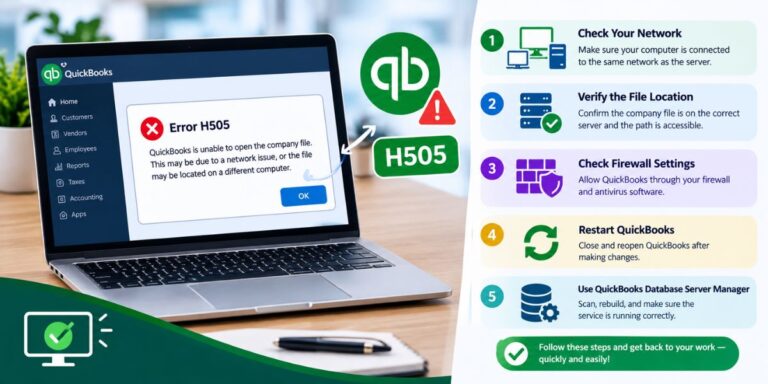
    QuickBooks Error H505 shows up when a workstation is accidentally set to host multi-user mode instead of just acting as a regular client connecting to the actual server. Basically, the workstation thinks it’s supposed to be the host, and that mix-up is what triggers the error. The fix is usually quick once you know where to look.

    Start With the Workstation Itself

    On the computer showing the error, open QuickBooks — but don’t open the company file yet. Go to File > Utilities and see what shows up:

    • If you see “Host Multi-User Access”, that’s actually the correct setting for a client machine — leave it as is and move on to check other workstations instead.
    • If you see “Stop Hosting Multi-User Access”, that’s the problem. Click it. This tells the workstation to stop trying to act as a host, since that job should belong to the actual server only.

    If you’ve got multiple workstations on the network, it’s worth checking each one the same way, since more than one machine can end up misconfigured this way over time.

    Check the Server Side Too

    If fixing the workstation setting doesn’t fully resolve it, the issue might actually be on the server end. On the server computer:

    1. Press Windows + R, type services.msc, and hit Enter.
    2. Look for QuickBooksDBXX in the list — the XX corresponds to your QuickBooks version year (for example, QuickBooks 2023 shows up as QuickBooksDB33).
    3. Make sure its Startup type is set to Automatic, and confirm the service status shows Running. If it’s stopped, start it.
    4. Do the same check for QBCFMonitorService — it needs to be running too, since it handles part of the multi-user connection process.

    If You’d Rather Skip the Manual Steps

    Intuit’s QuickBooks Tool Hub can handle a lot of this automatically. Download it, open the Network Issues section, and run the QuickBooks Database Server Manager from there. It scans for exactly this kind of misconfiguration and can fix it without you having to dig through settings menus manually.

    If the Error Keeps Coming Back

    A couple of things are worth checking if none of the above fully clears it up:

    • Your QuickBooks Desktop version year — some fixes and service names are version-specific, so knowing this narrows down what to check next.
    • Whether the workstation can actually ping the server’s IP address. If the ping fails, this isn’t really a QuickBooks configuration problem anymore — it points to a network connectivity issue between the two machines, which needs to be sorted out before QuickBooks will connect properly regardless of any settings changes.

    Share. Facebook Twitter Pinterest LinkedIn Email Copy Link
    alyona shevtsova
    • Website

    alyona shevtsova is a digital writer covering news, sports, business, entertainment, lifestyle, and the latest trending stories.

    Related Posts

    The Future of Hiring: How Unlimited Recruitment Platforms Are Replacing Traditional Agencies

    January 22, 2026

    How to Reinstall Bluetooth Driver in Windows 11 (Step-by-Step Guide)

    January 19, 2026

    Unlimited Design vs. Freelancers: Choosing What Fuels Your Brand Growth

    January 19, 2026
    Latest Posts

    Lyposingrass: What Is It, How to Grow It, Uses, Benefits and Safety

    September 28, 2026

    Vyvymanga: What Is It, How It Works, Features, Issues & Alternatives in 2026

    September 28, 2026

    Legal Teams Case Management Challenges: Common Problems and Practical Solutions

    September 26, 2026

    Explore Kerala, Karnataka, and Tamil Nadu with the Right South India Tour Package

    September 24, 2026

    A Beginner’s Guide: How to BuyComprehensive Car Insurance OnlineIn 5 Easy Steps

    September 24, 2026
    Popular Posts
    Fashion

    BabyDollKaila: A Timeless Fashion Statement

    By Buzztum EditorDecember 3, 2024

    Fashion is cyclical—and not nothing proves this higher than the long-lasting attraction of the BabyDollKaila.…

    9 Ways to Avoid Arrest: What You Need to Know

    August 19, 2026

    Discover Motchill Features and Content Library

    May 17, 2025

    John McCoy III: A Life of Legacy, Community, and Leadership

    September 15, 2025

    What Are Flamescnas? A Popular Trend Of The New Year

    November 23, 2022
    About Us

    Buzztum is an engaging platform for the readers who seek unique and perfectly readable portals to be updated with the latest transitions all around the world whether it is Entertainment, Fashion, Business, Technology, News, or any new events around the world.

    Popular Posts

    Ryuuou no oshigoto

    November 25, 2022

    The Best Wild Burger Near Me

    August 30, 2022
    Latest Posts

    Lyposingrass: What Is It, How to Grow It, Uses, Benefits and Safety

    September 28, 2026

    Vyvymanga: What Is It, How It Works, Features, Issues & Alternatives in 2026

    September 28, 2026
    © 2026 buzztum All Rights Reserved
    • Home
    • About Us
    • Privacy Policy
    • Terms and Conditions
    • Contact Us

    Type above and press Enter to search. Press Esc to cancel.