Close Menu
    What's New

    How Family Dentistry Uses Technology To Enhance Preventive Care

    October 10, 2026

    Why Image Creation Is Becoming a Bigger Part of Everyday Content Workflows

    October 8, 2026

    Looking at a team sheet before a match can change the bet

    October 7, 2026

    Tips to Improve Your Data Skills and Proficiency

    October 3, 2026

    Innovative Recycling Storage Ideas for a Greener Business

    October 2, 2026
    Facebook X (Twitter) Instagram Pinterest
    • Home
    • About Us
    • Privacy Policy
    • Terms and Conditions
    • Contact Us
    Facebook X (Twitter) Instagram Pinterest
    • news
    • Technology
    • Home
    • Health
    • Education
    • Business
    • Shopping
    • SEO
    • Finance
    • Games
    Home»Technology»How to Take a Screenshot on Windows 11: A Simple Guide
    Technology

    How to Take a Screenshot on Windows 11: A Simple Guide

    Michael CarterBy Michael CarterSeptember 21, 2026Updated:September 21, 2026No Comments3 Mins Read
    How to Take a Screenshot on Windows 11: A Simple Guide
    Share
    Facebook Twitter LinkedIn Pinterest Email

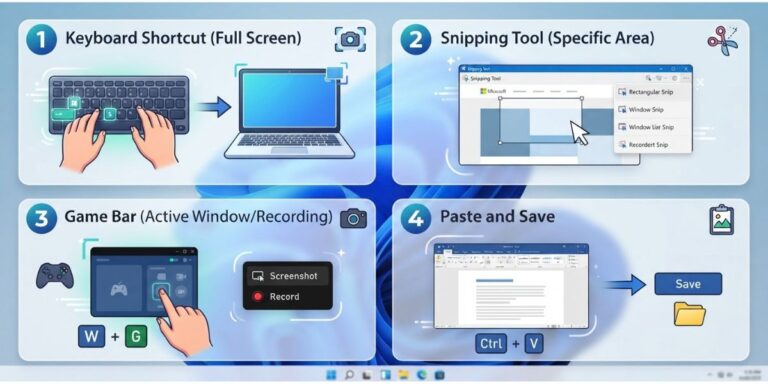
    Whether you need to save a message, show someone an error, or keep notes from an online class, screenshots come in handy all the time. Windows 11 has several built-in ways to capture your screen, and you don’t need any extra software. Here is how each method works.

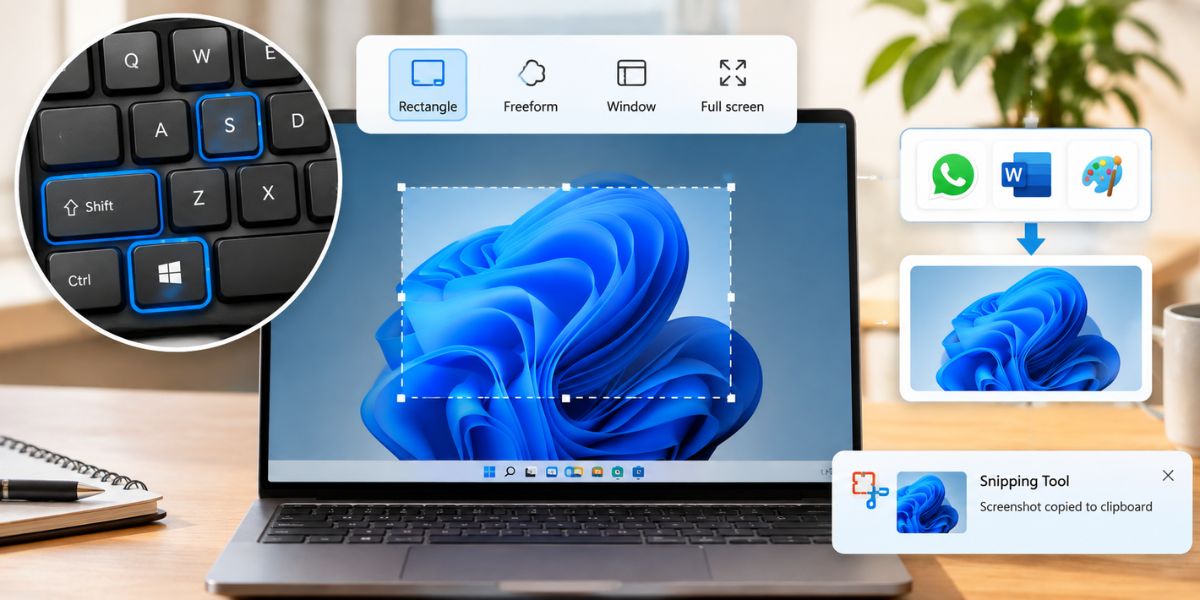
    1. Windows + Shift + S (Snipping Tool)
    1. Windows + Shift + S (Snipping Tool)

    This is the most popular and flexible method. Press all three keys together and your screen dims slightly while a small menu appears at the top. It offers four options:

    • Rectangle: select any area with your mouse.
    • Freeform: draw any shape around what you want to capture.
    • Window: capture a single open window.
    • Full screen: capture everything on your display.

    The screenshot is copied to your clipboard, not saved as a file. Paste it into WhatsApp, Word, or Paint with Ctrl + V. A notification also appears in the bottom-right corner, and clicking it opens the Snipping Tool, where you can edit and save the image. If you want to explore its features, Microsoft has a detailed page on how to use the Snipping Tool.

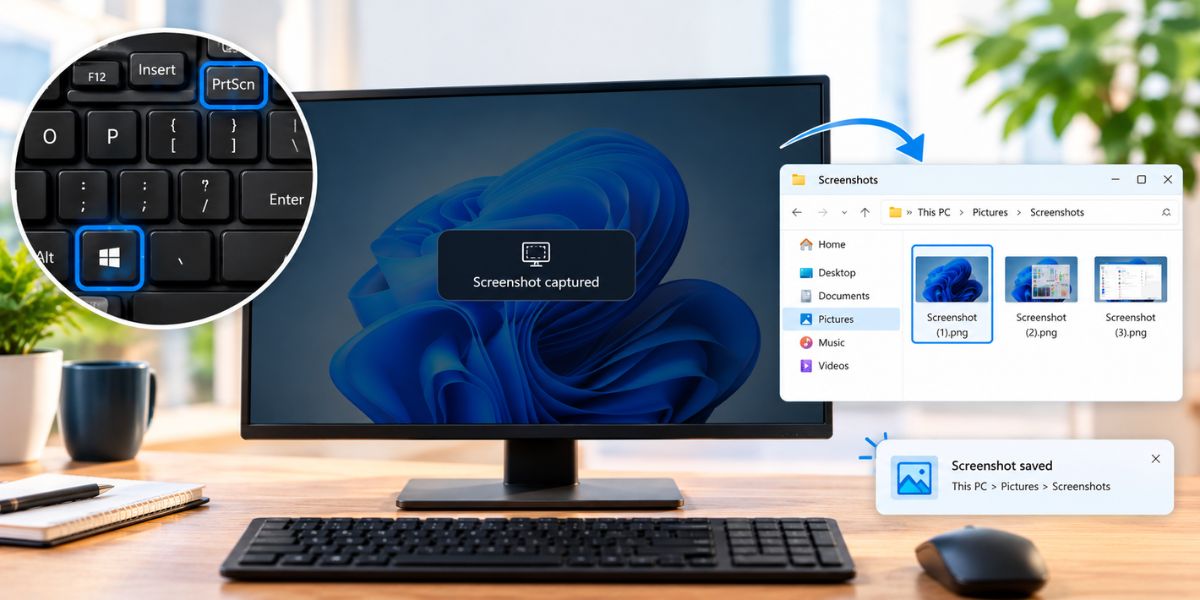
    2. Windows + PrtScn (Save Directly as a File)
    Windows + PrtScn (Save Directly as a File)

    If you want the screenshot saved automatically, this is the one to use. When you press these keys:

    • Your entire screen is captured.
    • The screen dims for a second to confirm it worked.
    • The image is saved in This PC > Pictures > Screenshots.

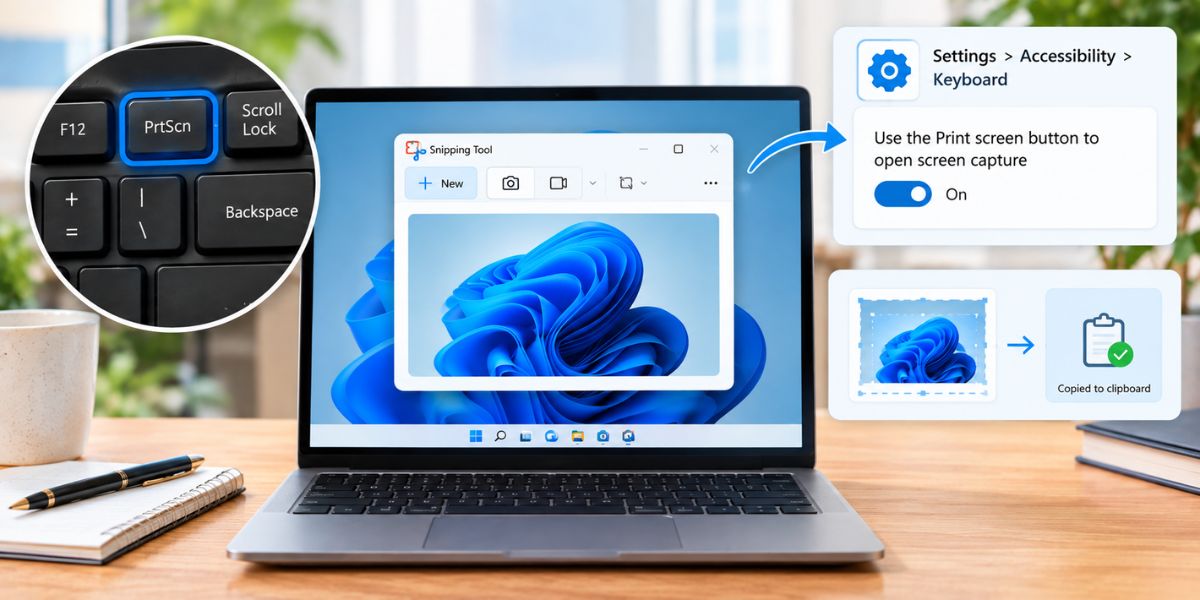
    3. PrtScn (Print Screen Key)
    PrtScn (Print Screen Key)

    On most Windows 11 systems, pressing PrtScn opens the Snipping Tool directly. On some, it only copies the full screen to your clipboard. You can change this behavior here:

    Settings > Accessibility > Keyboard > “Use the Print screen button to open screen capture”

    4. Alt + PrtScn (Active Window Only)
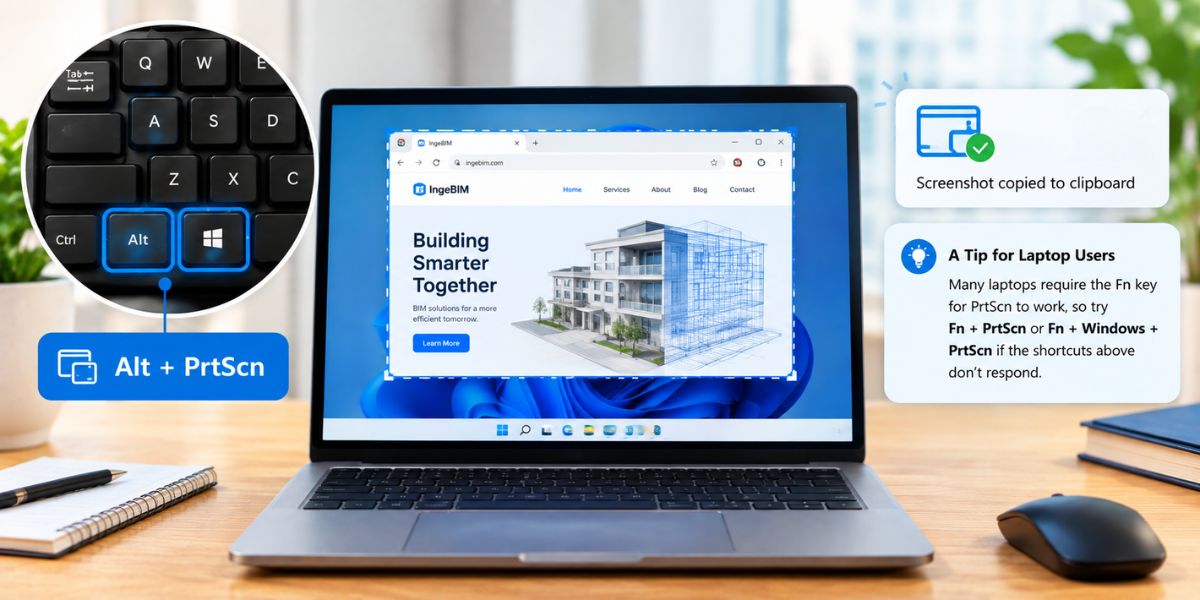
     Alt + PrtScn (Active Window Only)

    To capture only the window you’re currently working in, press Alt + PrtScn. It copies that window to your clipboard, ready to paste with Ctrl + V.

    A Tip for Laptop Users

    Many laptops require the Fn key for PrtScn to work, so try Fn + PrtScn or Fn + Windows + PrtScn if the shortcuts above don’t respond.

    Which Method Should You Use?

    What you needShortcut
    Just one part of the screenWin + Shift + S
    Full screen saved as a fileWin + PrtScn
    Only one windowAlt + PrtScn
    Editing after captureSnipping Tool (via the notification after Win + Shift + S)

    Final Thoughts

    Taking screenshots on Windows 11 is quick once you know the shortcuts. If you capture your screen often, memorize Win + Shift + S, since it gives you the most control. For a fast full-screen save, Win + PrtScn does the job. You can also see Microsoft’s own step-by-step screenshot guide for Windows 11 for more tips.

    Share. Facebook Twitter Pinterest LinkedIn Email Copy Link
    Michael Carter
    • Website

    Michael Carter is a U.S.-based writer and content researcher covering business, technology, lifestyle, home improvement, and everyday trends. He focuses on creating clear, practical, and easy-to-understand articles that help readers discover useful information and make informed decisions. With an interest in emerging trends and practical solutions, Michael brings a straightforward approach to every topic he covers. His work on Buzztum combines research with real-world insights to provide readers with engaging and useful content.

    Related Posts

    Tips to Improve Your Data Skills and Proficiency

    October 3, 2026

    10 Tech Tips and Tricks Everyone Should Know

    September 23, 2026

    How to Clear Cache and Cookies in Chrome: Step-by-Step Guide

    September 21, 2026
    Latest Posts

    How Family Dentistry Uses Technology To Enhance Preventive Care

    October 10, 2026

    Why Image Creation Is Becoming a Bigger Part of Everyday Content Workflows

    October 8, 2026

    Looking at a team sheet before a match can change the bet

    October 7, 2026

    Tips to Improve Your Data Skills and Proficiency

    October 3, 2026

    Innovative Recycling Storage Ideas for a Greener Business

    October 2, 2026
    Popular Posts
    Latest

    The 877-311-5134 Scam: What It Actually Is and How to Avoid Getting Caught

    By Buzztum EditorSeptember 16, 2026

    If you’ve gotten a call from 877-311-5134, you’re far from alone. This number shows up…

    Airikacal posts her videos on social media

    May 1, 2023

    Is Quantumator Right for You? A Comprehensive Review

    April 14, 2025

    Reality Quest Chapter 81: Unveiling the Enigma

    December 12, 2023

    Manufacturing or Warehouse Jobs

    June 14, 2023
    About Us

    Buzztum is an engaging platform for the readers who seek unique and perfectly readable portals to be updated with the latest transitions all around the world whether it is Entertainment, Fashion, Business, Technology, News, or any new events around the world.

    Popular Posts

    The Ultimate Guide to convert youtube to mp3 converter — free

    June 7, 2023

    Mastering Finance in the Heart of D.C with Briansclub”

    October 16, 2023
    Latest Posts

    How Family Dentistry Uses Technology To Enhance Preventive Care

    October 10, 2026

    Why Image Creation Is Becoming a Bigger Part of Everyday Content Workflows

    October 8, 2026
    © 2026 buzztum All Rights Reserved
    • Home
    • About Us
    • Privacy Policy
    • Terms and Conditions
    • Contact Us

    Type above and press Enter to search. Press Esc to cancel.