

Whether you need to save a message, show someone an error, or keep notes from an online class, screenshots come in handy all the time. Windows 11 has several built-in ways to capture your screen, and you don’t need any extra software. Here is how each method works.
1. Windows + Shift + S (Snipping Tool)
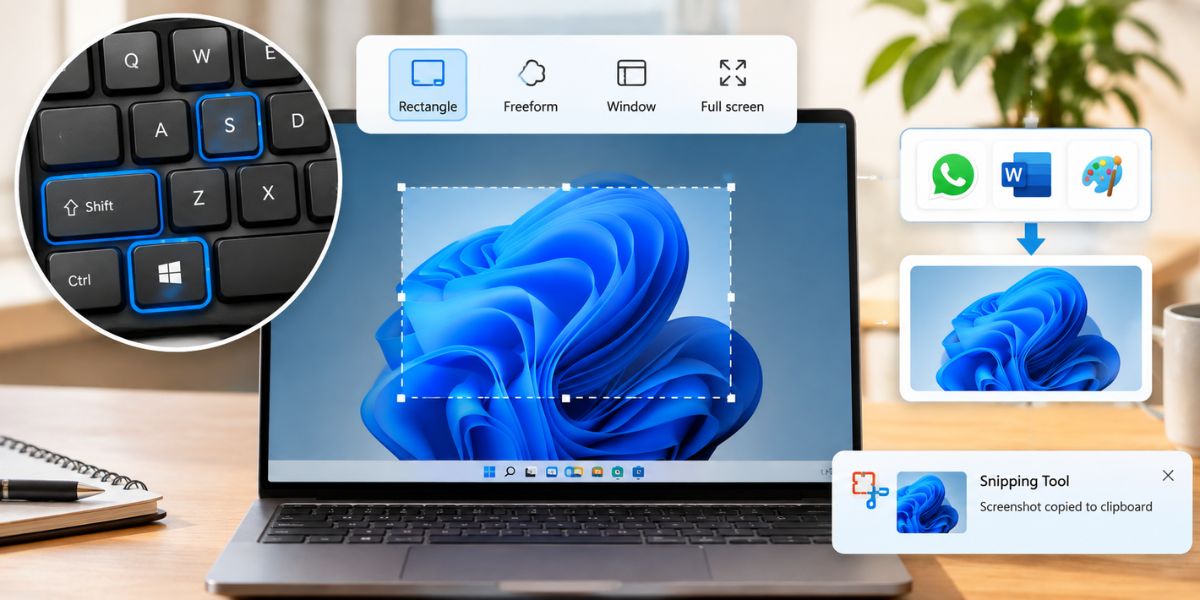
This is the most popular and flexible method. Press all three keys together and your screen dims slightly while a small menu appears at the top. It offers four options:
- Rectangle: select any area with your mouse.
- Freeform: draw any shape around what you want to capture.
- Window: capture a single open window.
- Full screen: capture everything on your display.
The screenshot is copied to your clipboard, not saved as a file. Paste it into WhatsApp, Word, or Paint with Ctrl + V. A notification also appears in the bottom-right corner, and clicking it opens the Snipping Tool, where you can edit and save the image. If you want to explore its features, Microsoft has a detailed page on how to use the Snipping Tool.
2. Windows + PrtScn (Save Directly as a File)
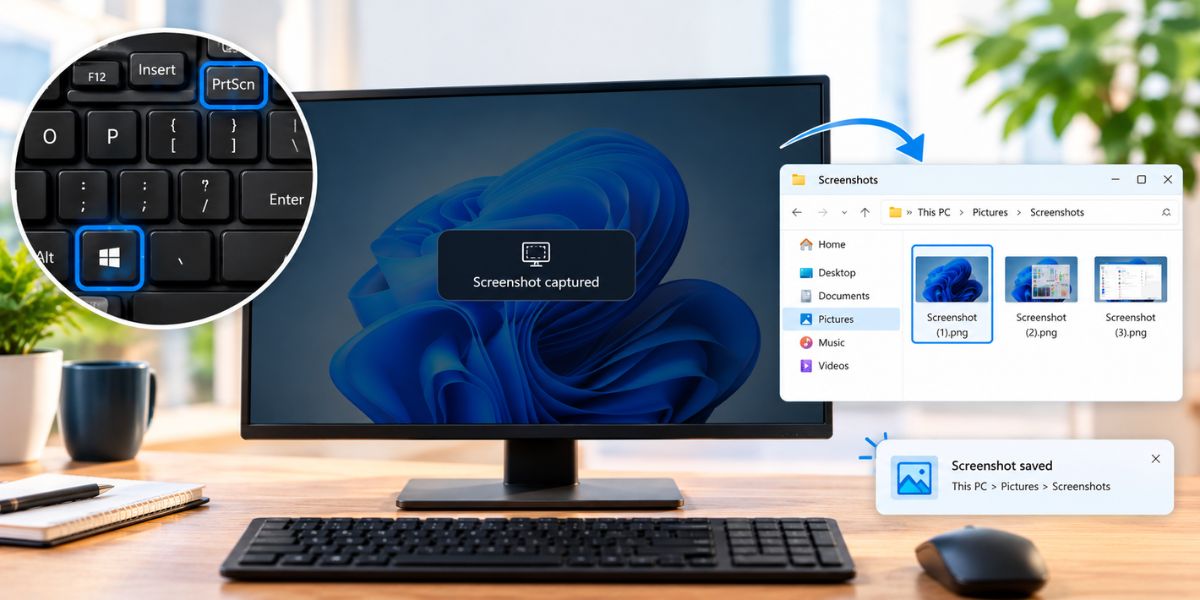
If you want the screenshot saved automatically, this is the one to use. When you press these keys:
- Your entire screen is captured.
- The screen dims for a second to confirm it worked.
- The image is saved in This PC > Pictures > Screenshots.
3. PrtScn (Print Screen Key)
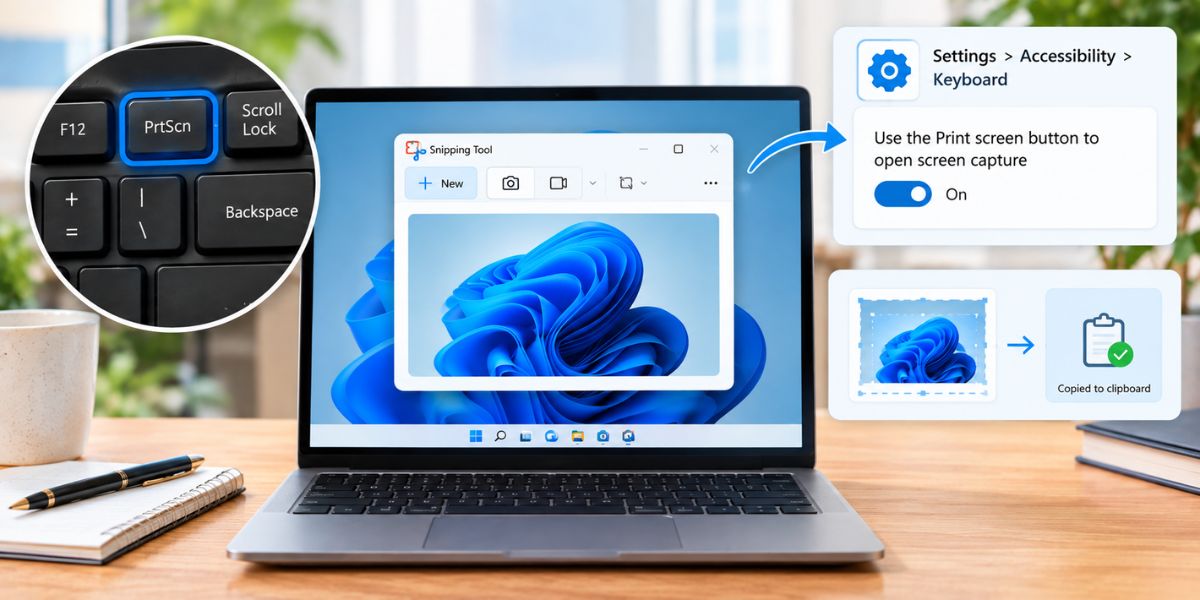
On most Windows 11 systems, pressing PrtScn opens the Snipping Tool directly. On some, it only copies the full screen to your clipboard. You can change this behavior here:
Settings > Accessibility > Keyboard > “Use the Print screen button to open screen capture”
4. Alt + PrtScn (Active Window Only)
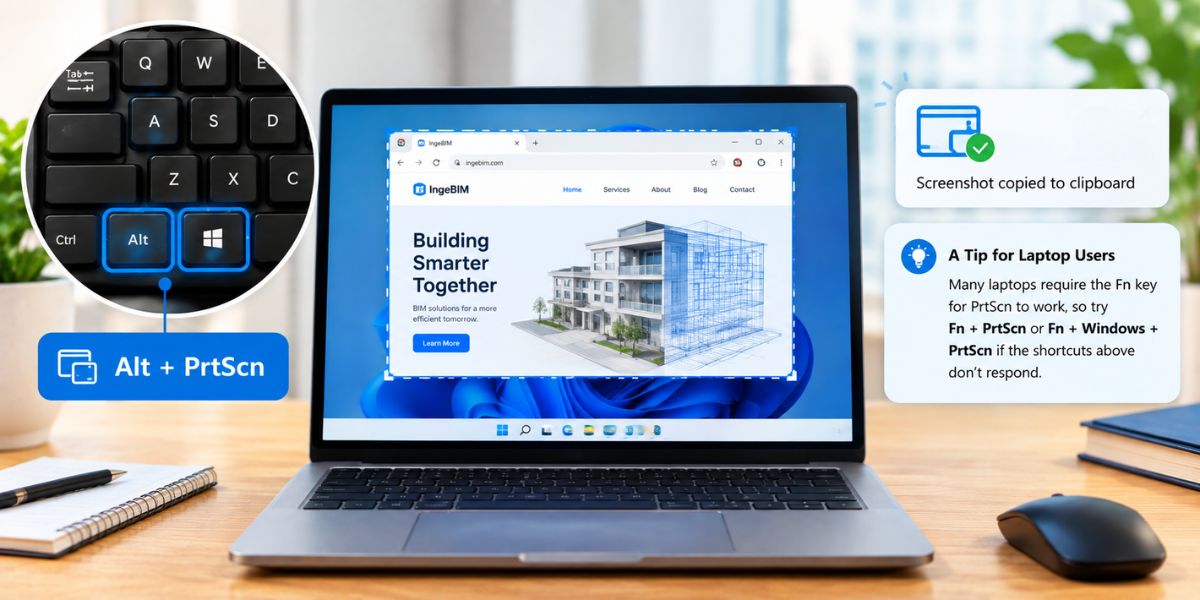
To capture only the window you’re currently working in, press Alt + PrtScn. It copies that window to your clipboard, ready to paste with Ctrl + V.
A Tip for Laptop Users
Many laptops require the Fn key for PrtScn to work, so try Fn + PrtScn or Fn + Windows + PrtScn if the shortcuts above don’t respond.
Which Method Should You Use?
| What you need | Shortcut |
|---|---|
| Just one part of the screen | Win + Shift + S |
| Full screen saved as a file | Win + PrtScn |
| Only one window | Alt + PrtScn |
| Editing after capture | Snipping Tool (via the notification after Win + Shift + S) |
Final Thoughts
Taking screenshots on Windows 11 is quick once you know the shortcuts. If you capture your screen often, memorize Win + Shift + S, since it gives you the most control. For a fast full-screen save, Win + PrtScn does the job. You can also see Microsoft’s own step-by-step screenshot guide for Windows 11 for more tips.
